
Mailgun Account Setup
1 - Creating Mailgun Account
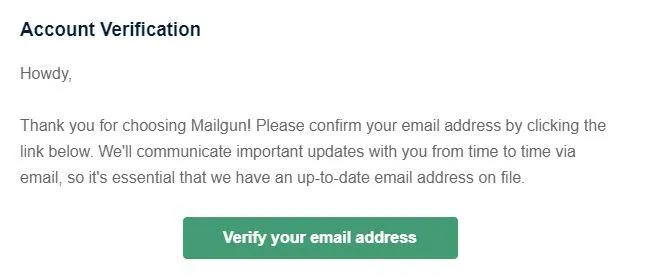
2 - Verify Mailgun Account
You'd Need To Verify Mailgun account from the email which you used to sign up with.
Once you click the verify link sent from mailgun you'd have to key in key sent to the phone number you used to verify
3 - Add Domain to Mailgun and configure DNS Settings
For this you'd need access to clients domain registrar is that wherever they purchased their domain.
In our example we are using Godaddy
Whichever provider it is, just navigate to DNS settings area for the clients domain you want to add to Mailgun account.
It's recommended to add a subdomain instead of the root domain so that reputation is not hurt.
for example root domain : yourcompany.com
subdomain will be : mailgun.yourcompany.com
4 - Connecting Mailgun with Gohighlevel CRM
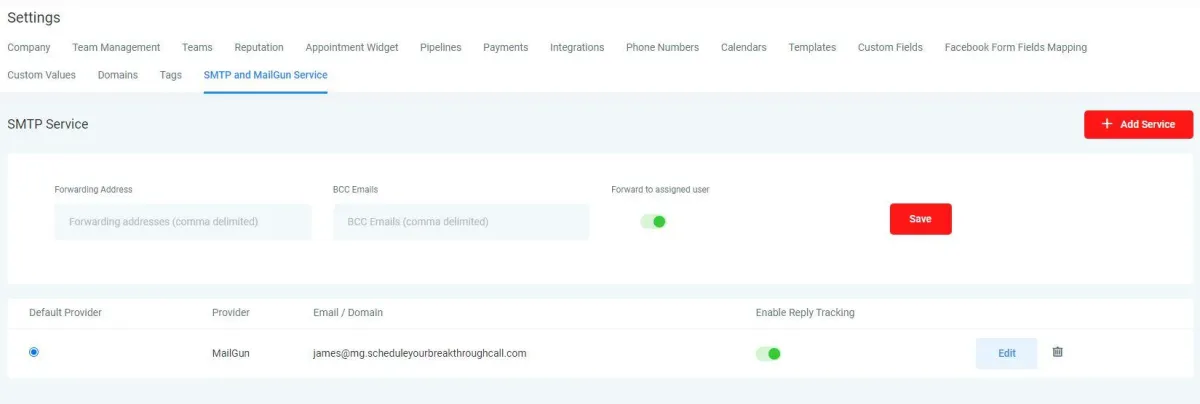
1-Navigate to Client Account in GHL
2- Navigate to Settings
3- Click On SMTP and MailGun Service
4-Input the settings you'd see from mailgun SMTP settings tab
5-Once you have saved the settings make sure to select it as your default provider
5 - Setting Up Mailgun to Recieve Replies
This should automatically populate once you connect Mailgun with GHL. But if you don't see anything inside of Recieving menu in mailgun you'd have to add the settings as below:
1- Click Create Route
2- Expression Type: Catch All
3- Forward is checked and paste in the following URL
https://msgsndr.com/mailgun/inbound_webhook
4- Description: HighLevel Route
5- Priority: 99

6 - Verify DNS in Mailgun
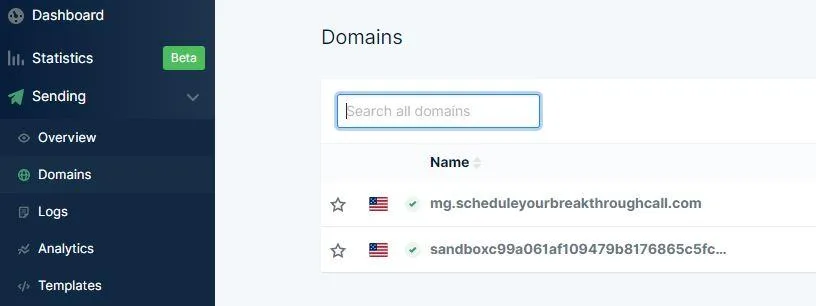
This step is to make sure you've correctly set up all the DNS settings and if everything is good you'd see a right green check mark right next your domain in mailgun.
7 - Testing Emails in GHL
Last Step is to Make sure everything was configured correctly.
We'd send out a test email from client's GHL Account to an email address and reply to that email to make sure both we are able send and recieve emails in GHL
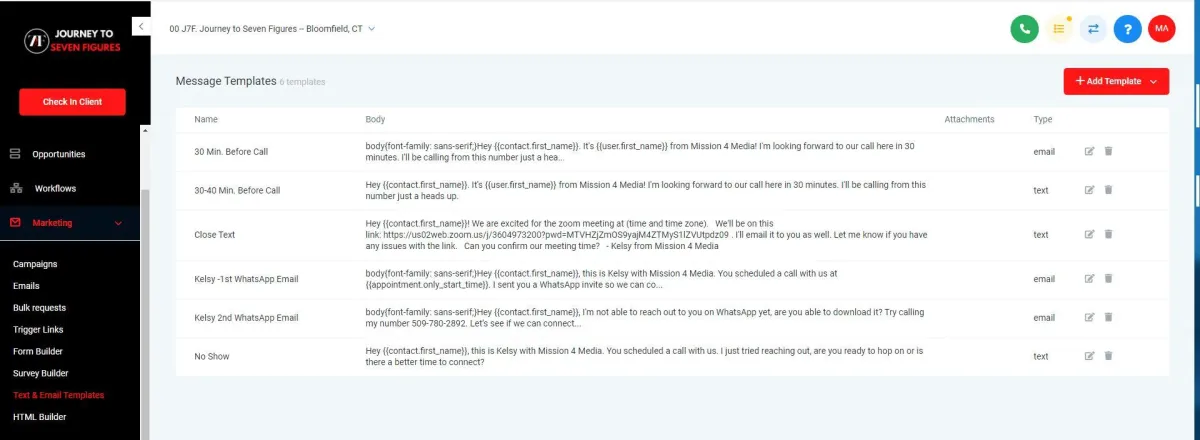
1- Go to Email & Text Templates under Marketing Menu in GHL
2- Click at the edit/pencil icon next to any email there
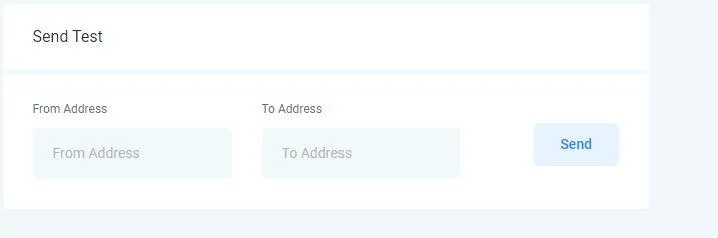
3- Fill in the from address to the email name@subdomain.maindomain.com
in our example the subdomain was mg so we used
james@mg.scheduleyourbreakthroughcall.com
To Address will be your email wherever you want to recieve the test email.
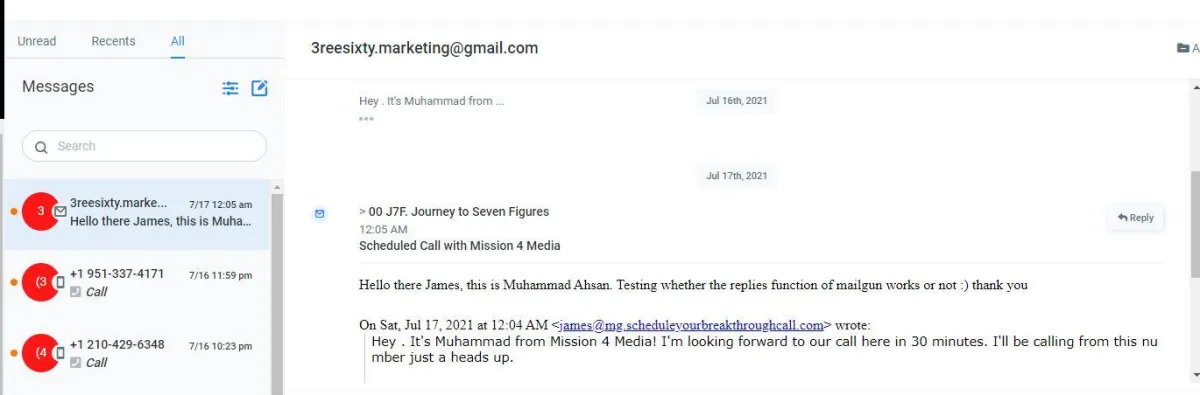
Once you send out the test email, reply back from your email account with some text and check back in conversations tab in GHL to see if it came in
If you've any questions reach out at
support@tashrizzo.com
Helping businesses grow is at the heart of our company. We keep that in mind with every action we take and make it our mantra.
📱 +1 (833) 647-0701
🗺️ 5826 New Territory Blvd #623 Sugar Land TX 77479
📧 support@tashads.com
This site is not part of the LinkedIn website or LinkedIn Inc. nor the Facebook website or Facebook Inc. Additionally, This site is NOT endorsed by LinkedIn or Facebook in any way. LINKEDIN is a trademark of LinkedIn, Inc. and FACEBOOK is a trademark of Facebook, Inc.
DISCLAIMER: The sales figures stated above are our client’s personal sales figures.
Please understand their results are not even remotely typical, we are not implying you’ll duplicate them (or do anything for that matter). In fact, if you do nothing, you can expect nothing. We use these references for example purpose only. Your results will vary and depend on many factors… including but not limited to your background, experience, and work ethic. All business entails risk as well as massive and consistent effort and action. If you’re not willing to accept that, please DO NOT APPLY FOR OUR PROGRAM.
Copyright © 2022 – Tash Advertising Inc – All Rights Reserved